Android Backup on Google Drive: A Complete, Up-to-Date Guide
By Super Admin
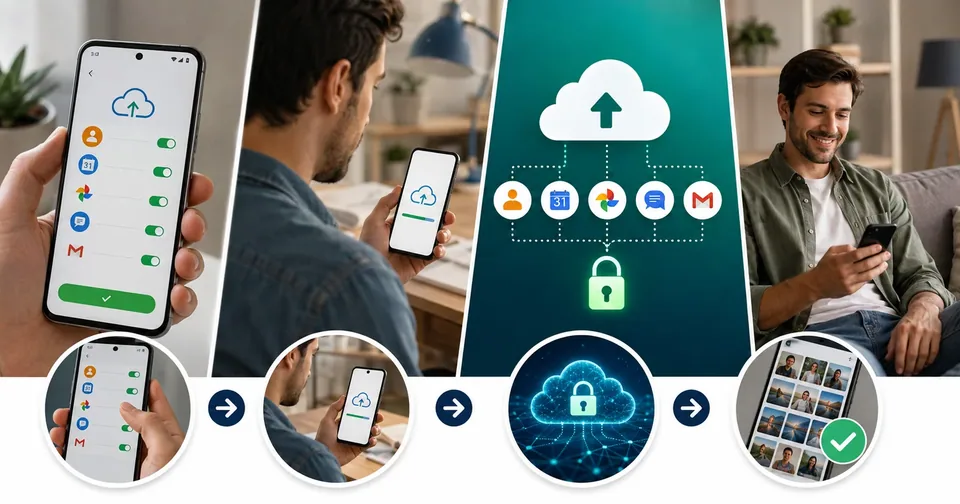
Losing a phone is stressful on its own. Losing everything on it — your photos, texts, contacts, and app data — is a different kind of pain. The good news is that your Android phone can quietly save most of that to the cloud. So a lost, stolen, or broken phone no longer has to mean losing your digital life.
This guide covers everything you need to know about setting up an Android backup on Google Drive. You will learn what gets saved, how to turn backups on, how to bring your data back on a new phone, and how to handle the storage changes Google rolled out in 2026.
You do not need any tech background to follow along. The steps are simple, and we point out where the menus differ between Pixel, Samsung, and other Android phones.
What an Android Backup on Google Drive Actually Means
People often mix up a few different things when they talk about backing up an Android phone. It helps to slow down and see the full picture, because each part protects a different type of data.
Think of it as three layers. First, there is the built-in system backup that Google runs for you. Second, there is Google Photos, which handles your pictures and videos. Third, there are the files you upload to Drive yourself. Together, these three cover almost everything on a typical phone.
The built-in system backup saves a copy of your phone's key data to your Google Account. You can see part of it inside the Google Drive app, under the Backups section. This is the layer most people mean when they ask how to back up an Android to Google Drive.
Here is why the layers matter in real life. Say you drop your phone in a lake on vacation. The system backup brings back your apps, settings, texts, and contacts on your next phone. Google Photos brings back your pictures from the trip. Any files you uploaded to Drive by hand are waiting there too. Miss one layer, and part of your data does not come back.
What Google Backs Up Automatically
Once backup is switched on, your phone saves this data on a regular schedule:
Your apps and most of their app data
Device settings, such as Wi-Fi networks, wallpaper, and display preferences
Call history
Contacts linked to your Google Account
Text messages (SMS) and picture messages (MMS)
Some system and account preferences
Photos and videos are handled separately through Google Photos, which we cover in its own section below. Keeping them apart is normal, and it is easy to set up both.
What Does Not Get Backed Up
A backup only protects what it actually includes, so it helps to know the gaps:
Files you never uploaded to Drive or Google Photos
Data from apps that choose to opt out of backup
Passwords stored only inside certain apps, not in your Google Account
Anything saved to an SD card, unless you move or upload it first
If a certain app holds data you cannot afford to lose, open that app and check whether it offers its own export or cloud sync. Some banking, note, and game apps keep their own separate backup.
Before You Start: A Quick Checklist
A backup only takes a few minutes, but a little prep helps it finish smoothly the first time. Run through these five points before you tap the button:
Sign in to your Google Account. Your backup lives inside this account, so make sure the right one is added to your phone.
Connect to Wi-Fi. Backups can be large, and Wi-Fi keeps you from burning through mobile data.
Plug in or charge your phone. Phones usually run backups while charging and idle, so power helps things move along.
Check your storage. A free Google Account includes 15 GB shared across Drive, Gmail, and Photos. If you are close to full, clear some space first.
Update Android if an update is waiting. Newer versions handle backups better and add the latest controls.
Expert tip: Set a reminder to check your backup once a month. Turning it on is only half the job — a backup that stopped weeks ago will not help you when you need it.
How to Back Up Your Android Phone to Google Drive
The steps are almost the same on every phone, but the menu names change from brand to brand. Below are the two most common paths. If your screen looks a little different, use the built-in search inside Settings and type the word backup — it will jump you straight to the right page.
On a Pixel or Stock Android Phone
Open the Settings app.
Tap Google, then tap All services if you see that tab.
Under Backup and restore, tap Backup.
Make sure the main backup switch (often labeled Backup by Google One) is turned on.
Tap Back up now to run it right away.
The first backup can take a while, especially with lots of apps and messages. Later backups are faster because your phone only sends what changed.
On a Samsung Galaxy Phone
Open Settings and tap Accounts and backup.
Tap Google Backup, sometimes shown as Back up data under Google Drive.
Turn the backup switch on.
Tap Back up now to start.
Samsung phones also offer Samsung Cloud, which is a separate service from Samsung. It is fine to use both, but they do not replace each other. If your goal is an Android backup on Google Drive, use the Google Backup option so your data lands in your Google Account.
How Automatic Backups Work
Once backup is on, your phone handles most of the work for you. A fresh backup usually runs when a few conditions line up at the same time:
It has been about 24 hours since the last backup
The phone is idle and not in active use
You are connected to Wi-Fi
The phone is charging
That is why plugging in overnight on Wi-Fi is the easiest way to keep things current. You can still tap Back up now any time you want an instant save, such as right before a factory reset.
How Long Does a Backup Take?
The first backup is the slow one. Depending on how many apps, messages, and settings you have, it can take anywhere from a few minutes to an hour or more, especially on a busy phone or a slower connection. It is normal for it to feel like nothing is happening for a while.
After that first run, backups are quick, because your phone only uploads what changed since last time. Photos are the exception — a large batch of new pictures or a long video can take longer to finish uploading through Google Photos. If a backup seems stuck, leave the phone alone on Wi-Fi and give it time before you start troubleshooting.
How to Check What Is Already Backed Up
It is easy to assume your phone is backing up when it is not. A quick check clears up any doubt and shows you the date of your last save.
Open the Google Drive app, tap the menu, then tap Backups. You will see each device that has a backup, along with what it includes.
Or open Settings, tap Google, then Backup, to see the last backup date and size near the top of the screen.
If the date is recent, you are in good shape. If it is weeks or months old, your automatic backup likely stopped, and it is time to turn it back on and run a fresh one. Checking this now is a lot less stressful than finding out after you have lost a phone.
The 2026 Backup Changes Every Android User Should Know
Google made real changes to Android backups in 2026, and they affect your storage and your options. If you set up backups a year or two ago, some of this will be new to you.
Your Backup Now Counts Toward Your Storage
This is the big one. Starting July 7, 2026, all the data in your Android backup counts against your Google Account storage. Before this change, your photos and videos in Google Photos already counted, but your texts, call history, and device settings backed up for free.
Now those items use a small slice of the same space that holds your Drive files, Gmail, and Photos. Google says the typical backup grows by only about 40 MB, so most people will barely notice. New backup users saw this first, and existing accounts are being switched over on a rolling basis, usually about 45 days after Google emails you the notice.
New Controls Over What You Back Up
Along with the storage change, Google added clearer on and off switches so you decide what goes to the cloud. On most phones you will find them under Settings, then Accounts and backup, then Google Backup, then Other device data. There you can toggle:
SMS and MMS messages (RCS messages ride along in the MMS group)
Call history
Device settings
You also get per-app switches, so you can back up the apps that matter and skip the ones that do not. This is handy if a few large games are eating your storage. You can review which apps hold data worth keeping and turn the rest off from the same screen.
The New Documents Backup Feature
Google also added a way to back up the documents saved on your device, not just app data. It covers common file types like .DOC, .PPT, .XLS, and .PDF, along with other documents on your phone.
These files land in Google Drive inside an Android backups folder, in a sub-folder named after your phone, so each device stays separate. The backup follows your normal schedule, and you can trigger it by hand when you want an instant copy. One thing to remember: a change you make in one place does not sync to the other, so treat this as a safety copy rather than a live folder. If you want to tidy or combine documents before you rely on them, a set of free PDF Tools can help you merge, compress, or convert files first.
How to Back Up Photos and Videos
Your pictures and videos are not part of the system backup. They ride with Google Photos instead, which is the app most people already use to view their camera roll. Turning on photo backup takes less than a minute.
Open the Google Photos app.
Tap your profile picture in the top corner.
Tap Photos settings, then Backup.
Turn Backup on and pick your upload quality.
Storage Saver quality shrinks files a little so you fit more in your 15 GB, while Original quality keeps full resolution and uses more space. Either way, your photos count toward your Google Account storage, so keep an eye on the meter if you shoot a lot of video.
Once your photos are safely in the cloud, you can view or lightly edit them from any device. If you need to crop, resize, or convert an image before sharing it, the Image Tools on Toolsimpli handle those quick jobs right in your browser.
How to Upload Files to Google Drive Yourself
The automatic backup does a lot, but you can also send any file to Drive by hand. This is the safest way to protect one-off documents, scans, or downloads that live outside your camera roll.
Open the Google Drive app.
Tap the plus button, usually in the bottom corner.
Tap Upload.
Pick the files or folders you want to save, then wait for the upload to finish.
A green check or a finished status means the file is safely in the cloud. For paperwork you plan to keep for years, it is worth naming files clearly and grouping them into folders so you can find them later. If you are working with contracts, receipts, or reports, the PDF Tools make it easy to merge related pages into one clean file before you upload.
Google Drive Backup vs Other Ways to Back Up Android
Google Drive is the easiest option for most people, but it is not the only one. It helps to know where each method fits, so you can mix and match instead of relying on a single copy.
Backing Up to a Computer
You can plug your phone into a Windows PC or Mac and copy photos, videos, and files by hand. This gives you a local copy you fully control, which is great for large video libraries and for anyone who does not want everything in the cloud. The trade-off is that it is manual, so it only helps if you actually remember to do it.
Third-Party Cloud Services
Services like OneDrive, Dropbox, and others can back up your files and photos too. They work well as a second copy, especially if you already pay for one. Many of them live as apps you install and sign in to, then let them sync in the background. Just remember that these cover files and photos, not your full system backup of app data and settings.
Which Should You Choose?
For a hands-off, all-in-one option, Google Drive wins on Android because it is built in and free to start. For extra safety, keep a second copy somewhere else, like a computer or another cloud. Losing a phone is bad, but losing your only backup at the same time is worse, and a second copy protects against exactly that.
How Much Space Does an Android Backup Use?
There is no single number, because it depends on what you keep. The system backup — apps, settings, texts, and call history — is usually small, often just a few hundred megabytes. After the 2026 change, adding texts, call history, and settings raises the average backup by only about 40 MB, which is tiny.
The parts that grow fast are photos and videos. A few years of a busy camera roll can run into many gigabytes, which is why most people fill their 15 GB with pictures long before app data becomes a problem.
Here is a simple way to picture it: your app and settings backup sips storage, while Google Photos drinks it. If your account keeps filling up, your photos and videos are almost always the reason. Trimming long clips and clearing old screenshots frees the most room the fastest.
How to Manage Your Google Storage
Every free Google Account comes with 15 GB of storage, and that space is shared across Drive, Gmail, and Google Photos. Since your backup now counts too, it pays to keep an eye on how full you are.
When you run low, you have two choices: free up space or buy more. Freeing space is usually the first step. Here are the fastest wins:
Delete large or old files in Drive, then empty the Drive trash
Clear out big email attachments and old messages in Gmail
Review Google Photos for blurry shots, screenshots, and long videos you no longer need
Turn off backup for apps and file types you do not care about
If you have cleaned up and still need room, Google One offers paid plans that raise your limit, with 100 GB as the common entry tier. That is often plenty for a phone backup plus years of photos. For more space-saving guides and handy utilities, the Online Tools section is a good place to browse.
Key takeaway: A backup that fails halfway because your storage is full is not a backup you can trust. Check your storage before you assume everything saved.
How to Restore Your Data on a New or Reset Phone
A backup is only useful if you can bring it back. The good news is that restoring is built into the setup screen, so you handle it the first time you turn on a new or freshly reset phone.
Start setting up the phone and connect to Wi-Fi.
Sign in with the same Google Account you used for the backup.
When the setup asks, choose to restore from a backup.
Pick the backup you want, then select which apps and data to bring over.
Let the phone finish. Apps and files keep downloading in the background after setup.
Your photos come back a little differently. As long as photo backup was on, they are already safe in Google Photos, so you just sign in and they appear in the app. You do not need to restore them through the setup screen the way you do apps and settings.
A couple of limits are worth knowing. You cannot restore a backup from a newer Android version onto a phone running an older version. And the exact restore screen can look a bit different depending on the brand and Android version. If you skip the restore step during setup, you may need to reset the phone again to try, so it is best to handle it right away.
How to Keep Your Backups Safe and Private
Your backup holds personal data, so it is worth locking it down. Google already encrypts backups as they move to and from its servers, and on phones running Android 9 or higher, much of your data is protected with your screen lock PIN, pattern, or password. A few habits make it even safer:
Use a strong screen lock, since it also protects your encrypted backup
Turn on two-step verification for your Google Account
Review the devices signed in to your account and remove any you do not recognize
Avoid backing up over public Wi-Fi you do not trust
These steps matter because your Google Account is the key to your whole backup. If someone else gets into it, they get your data too. Treat that password like the front door key to your digital life, and change it right away if you ever suspect someone else has it. A password manager makes it easy to use a long, unique password without having to memorize it.
How to Turn Off or Delete an Android Backup
Sometimes you want to stop backing up, or clear out an old backup from a phone you no longer use. Both are quick to do.
To stop backing up, open your backup settings and switch the main backup toggle off. You can also leave backup on but turn off individual apps or data types you do not want in the cloud, using the same Other device data controls from earlier.
To delete an old backup and free up the space it uses:
Open the Google Drive app, tap the menu, then Backups.
Tap the device backup you want to remove.
Choose Delete backup and confirm.
Deleting a backup cannot be undone, so only remove ones you are sure you no longer need. If you are selling or giving away a phone, back up first, then factory reset the device so your personal data does not go with it.
Troubleshooting: When Your Backup Will Not Work
Most backups run without a hitch, but a few problems come up often. Here is how to sort out the usual suspects.
The Backup Seems Stuck or Never Finishes
First, confirm you are on Wi-Fi and the phone is charging. Then leave it idle for a while, since backups pause when you are actively using the phone. Restarting the phone clears a lot of stuck jobs, and a quick software update can fix the rest.
You See a Not Enough Storage Message
This means your Google Account is full. Clear space using the tips in the storage section above, or upgrade your plan. Once you have room, tap Back up now and it should pick up where it left off.
Your Backup Does Not Show Up During Restore
Double-check that you signed in with the same Google Account that made the backup. Also make sure the backup actually completed — an old date on the backup means it may have stopped running. If you still do not see it, give it a minute, since new backups can take time to appear.
The Backup Date Looks Old
An old date is a sign that automatic backups have not been running. Open your backup settings, confirm the switch is on, and tap Back up now to force a fresh save. Then follow the monthly check habit so it does not drift again.
Some Apps Did Not Come Back After a Restore
A few apps handle their own data and do not use the standard backup, so they can come back empty. If that happens, open the app and look for a sign-in or an import or restore option inside its own settings. Games and messaging apps in particular often keep a separate cloud save tied to your account, not to your phone.
Quick Tips for a Backup You Can Actually Rely On
Keep these simple habits in mind and your data will be ready whenever you need it:
Turn on both the system backup and Google Photos, since they cover different data
Plug in on Wi-Fi overnight so automatic backups have their best chance to run
Check your backup date once a month
Leave enough free storage so a backup never fails halfway
Handle the restore step right away when setting up a new phone
Keep a manual copy of documents you truly cannot lose
Setting up an Android backup on Google Drive is one of the smartest few minutes you can spend on your phone. It runs quietly in the background, it protects the things you would hate to lose, and it makes moving to a new phone almost painless. With the 2026 changes, the main thing to watch is your storage, so keep it tidy and your backups will keep humming along. For more plain-English guides and free tools, browse the Toolsimpli Blog or explore the utilities over at Toolsimpli.
Frequently Asked Questions
Does the phone backup save my photos too? Not through the system backup. Photos and videos are saved by Google Photos, so turn on backup there too for full coverage.
Is backing up my Android phone to Google Drive free? Yes, up to your 15 GB of free Google Account storage. Since 2026, your backup counts toward that space, so heavy users may need a paid plan.
How often does my phone back up? About once a day, when the phone is idle, charging, and on Wi-Fi. You can also tap Back up now for an instant save.
Can I restore a backup to a different Android phone? Usually yes, as long as you sign in with the same Google Account. You cannot restore a newer Android version's backup onto an older version, though.
How do I stop backing up certain data? Open your Google Backup settings, tap Other device data, and switch off the items or apps you do not want to save.
Hi, we hope you feel more informed after this article. If you find an error, contact us through Write For Us so our team can fix it and keep readers happy. Cheers, Toolsimpli.
Related posts
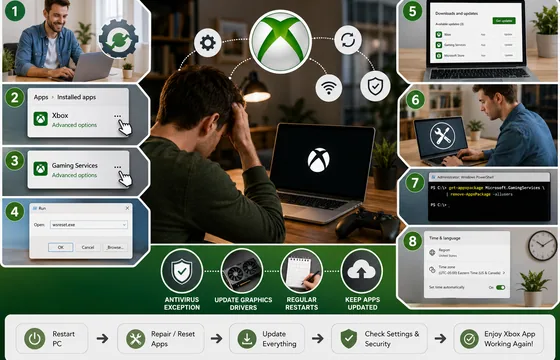
Xbox App Not Working on PC in 2026: 9 Fixes That Actually Work
The good news is that this problem almost always comes down to a small handful of causes: a corrupted background service, an outdated app version, a broken sign-in token, or a Windows update that didn't finish cleanly. None of these require reinstalling Windows. Below is a complete, step-by-step guide to get the Xbox app running again.

Procentive App Review 2026: Features, Pricing, Pros, Cons and Alternatives
The core purpose of Procentive in 2026 is simple: help behavioral health organizations spend less time on admin work and more time with clients. It does this by connecting clinical documentation, scheduling, and billing into a single workflow, so information entered once flows automatically to the next step, whether that's a progress note or an insurance claim.
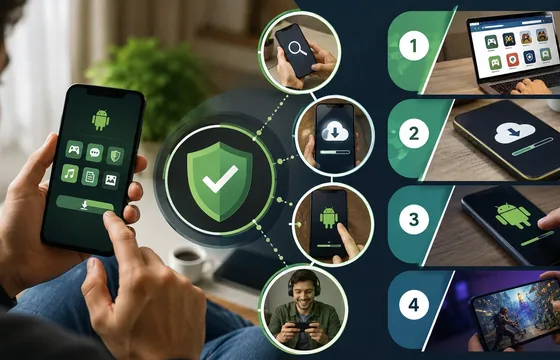
Best Legitimate APK Sites 2026: Verified & Trusted App Download Platforms
Remember: When choosing between apk sites, prioritize transparency, reputation, and your specific needs. The best apk sites in 2026 are those that respect your privacy, verify their content, and operate with genuine user interests in mind. Your digital freedom is worth protecting. Choose wisely. Choose legitimacy. Choose from our verified best apk sites list.