Total Wireless Transfer PIN and eSIM: A Simple Setup Guide
Switching phones or carriers should be simple, but two things tend to cause headaches: getting your number transfer PIN and setting up an eSIM. If you're a Total Wireless customer, both are easier than they look once you know where to click. This guide covers how to grab your transfer PIN, how to activate a Total Wireless eSIM, and what to do if something gets stuck along the way.
First, how Total Wireless works
Total Wireless is a prepaid brand that runs on Verizon's network. That's useful to know, because a lot of its activation and eSIM steps mirror Verizon's process. It also means your coverage is essentially Verizon coverage, which is one of the widest in the country.
What a Total Wireless transfer PIN is
A number transfer PIN, sometimes called a port-out PIN or NTP, is a short security code that proves you own your phone number. You need it when you're leaving Total Wireless and taking your number to another carrier. The new carrier asks for three things: your phone number, your account number, and this transfer PIN. Without the PIN, the whole switch stalls.
It's easy to mix this up with your account PIN, but they're not the same. Here's the difference at a glance.
Item | What it's for |
|---|---|
Account PIN | Logging in and managing your Total Wireless account |
Account number | Identifies your specific Total Wireless account |
Number transfer PIN (NTP) | Authorizes moving your phone number out to another carrier |
How to get your Total Wireless transfer PIN
There are a few ways to get it, and the text method is usually the fastest.
Text for it. Send "NPP" or "NTP" to 611611 from your Total Wireless phone. An automated reply walks you through getting the PIN.
Call support. Dial Total Wireless customer care at 1-866-663-3633 and ask for your number transfer PIN. Verify your identity when prompted.
Check your account. Sign in to your Total Wireless online account or app and look for the transfer PIN option in your profile or number settings.
Important: The transfer PIN is usually time-sensitive and can expire, so get it right before you start the switch, not days ahead. Also make sure any "Number Lock" or port-out protection is turned off, or the transfer can be blocked.
Porting your number out without losing service
A few simple rules keep this smooth.
Don't cancel Total Wireless before the port finishes. Your old service stays active until the new carrier completes the switch, then it disconnects on its own.
Keep your Total Wireless phone working until the number actually moves.
Give the new carrier your exact account number and current transfer PIN.
If the port fails, a wrong PIN or an active number lock is usually the reason. Refresh the PIN and try again.
Setting up a Total Wireless eSIM
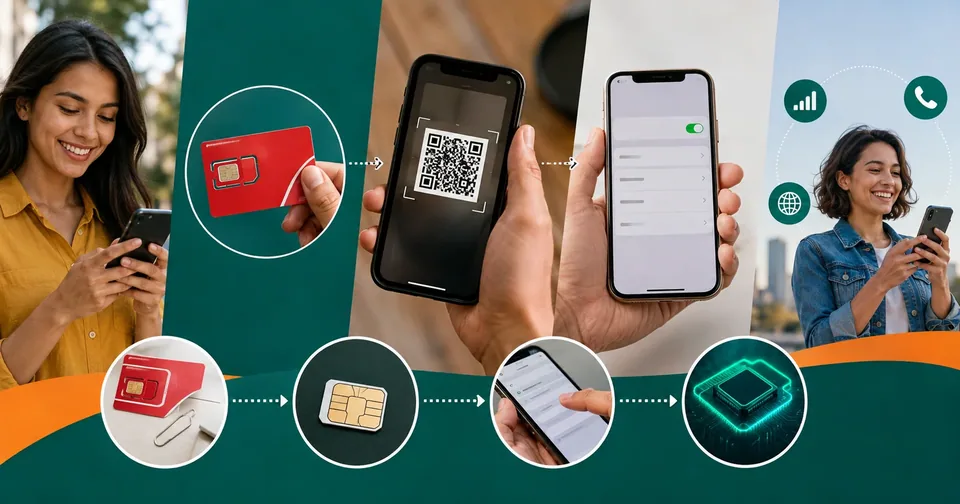
An eSIM is a digital SIM built into your phone. Instead of popping in a plastic card, you download a profile and your line activates. Most recent phones support it, including iPhone XR and XS and newer, plus many Samsung Galaxy, Google Pixel, and other modern Android models. Your phone also needs to be unlocked and eSIM-compatible.
Why bother with an eSIM? It activates fast with no waiting for a card in the mail, it's easy to switch between devices, and you can often run two lines on one phone.
How to activate a Total Wireless eSIM
The exact screens vary a little by phone, but the flow is the same.
Confirm compatibility. Check that your phone supports eSIM and is unlocked. On iPhone, look under Settings, General, About. On Android, check under About phone or your SIM settings.
Buy the eSIM plan. Purchase it through Total Wireless online or in the Total Wireless app.
Get your activation. You'll either receive a QR code to scan or the app will install the eSIM for you.
Install the profile. Connect to Wi-Fi and follow the prompts to download and install the eSIM.
Give it a few minutes. It can take up to about 15 minutes to connect the first time. Don't restart the process while you wait.
Move your number if needed. If you're keeping your existing number, complete the transfer step so your line lands on the new eSIM.
Tip: If you're scanning a QR code, keep it open on a second screen or a printout so your phone's camera can read it. If you ever need to create or display a QR code for your own setup, our free QR code generator can help in a pinch.
Moving an eSIM to a new phone
Upgrading? You don't always need a brand-new eSIM. On recent iPhones, eSIM Quick Transfer can move your line between devices without contacting support, as long as both phones are nearby, signed in, and on a recent version of iOS. If a transfer tool isn't available for your phones, you can ask Total Wireless to reissue the eSIM, often by sending a fresh QR code, and then activate it on the new device.
Common problems and quick fixes
Problem | Likely fix |
|---|---|
Transfer PIN not working | Make sure it hasn't expired, remove any number lock, and request a fresh PIN by texting 611611 |
eSIM won't activate | Confirm the phone is unlocked and eSIM-capable, connect to Wi-Fi, and wait the full 15 minutes |
No service after activation | Restart the phone once and check that the eSIM line is switched on in settings |
Lost the QR code | Contact Total Wireless to resend the eSIM profile |
Port-out stalled | Give the new carrier your account number and current transfer PIN, not your login PIN |
A few tips before you switch
Back up your phone before you move lines or devices.
Keep your account details, meaning your number, account number, and PIN, in one safe place. A secure note or a strong password from a password generator helps protect the account you'll be porting.
Do the switch when you have time and Wi-Fi, not right before an important call.
Don't cancel the old line yourself; let the completed port close it for you.
Once you know the difference between an account PIN and a transfer PIN, and you see that an eSIM is just a digital version of the card you already use, the whole process gets a lot less stressful. Grab your PIN from 611611 or support, follow the eSIM prompts, give it a few minutes to connect, and you'll be up and running with your number intact.
Dear friend, we hope this article helped you learn. If you spot a mistake, kindly write to us using Write For Us and our whole team will correct it. Regards, Toolsimpli.
Related posts
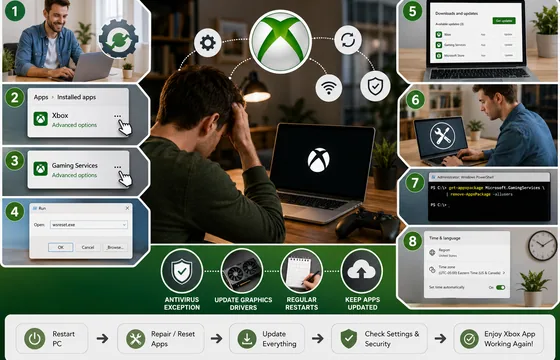
Xbox App Not Working on PC in 2026: 9 Fixes That Actually Work
The good news is that this problem almost always comes down to a small handful of causes: a corrupted background service, an outdated app version, a broken sign-in token, or a Windows update that didn't finish cleanly. None of these require reinstalling Windows. Below is a complete, step-by-step guide to get the Xbox app running again.

Procentive App Review 2026: Features, Pricing, Pros, Cons and Alternatives
The core purpose of Procentive in 2026 is simple: help behavioral health organizations spend less time on admin work and more time with clients. It does this by connecting clinical documentation, scheduling, and billing into a single workflow, so information entered once flows automatically to the next step, whether that's a progress note or an insurance claim.

AI App Builder Tools Free and Paid: The Complete 2026 Directory
Ten years ago, turning an idea into working software meant hiring a developer or spending months learning to code. That wall is gone. Today you type a sentence, wait ninety seconds, and a working app opens in your browser with a database behind it.
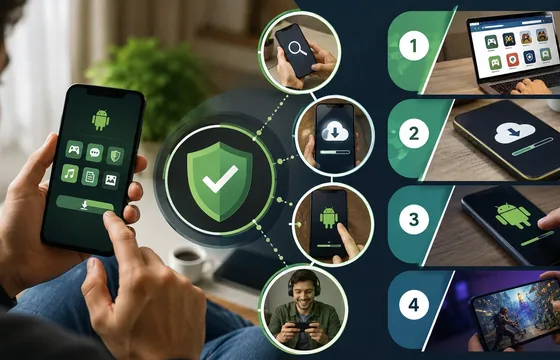
Best Legitimate APK Sites 2026: Verified & Trusted App Download Platforms
Remember: When choosing between apk sites, prioritize transparency, reputation, and your specific needs. The best apk sites in 2026 are those that respect your privacy, verify their content, and operate with genuine user interests in mind. Your digital freedom is worth protecting. Choose wisely. Choose legitimacy. Choose from our verified best apk sites list.