Grammarly Software for Mac: Setup, Features, and Whether Its Worth It in 2026
Write Better on Your Mac with Grammarly
Apple's built-in spell checker does a good job catching basic spelling mistakes, but it doesn't identify awkward sentences, repetitive wording, or an email that sounds harsher than intended. That's where Grammarly software for Mac stands out.
In 2026, Grammarly continues to be one of the most popular writing assistants for Mac users, helping students, professionals, bloggers, and businesses improve their writing across almost every application.
This guide explains how to install Grammarly on a Mac, its key features, pricing plans, and how it compares with Apple's built-in writing tools.
What Grammarly for Mac Does
Grammarly works in real time by analyzing your writing as you type across supported Mac applications.
It helps improve:
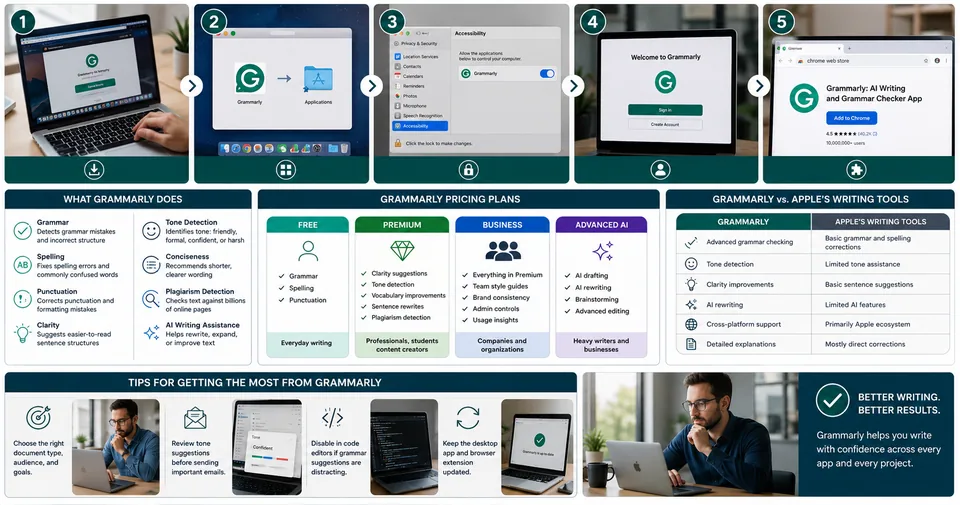
Feature | Description |
Grammar | Detects grammar mistakes and incorrect sentence structure |
Spelling | Fixes spelling errors and commonly confused words |
Punctuation | Corrects punctuation and formatting mistakes |
Clarity | Suggests easier-to-read sentence structures |
Tone Detection | Identifies whether your writing sounds friendly, formal, confident, or harsh |
Conciseness | Recommends shorter, clearer wording |
Plagiarism Detection | Checks text against billions of online pages (Premium plans) |
AI Writing Assistance | Helps rewrite, expand, or improve text (Paid plans) |
The free version covers grammar, spelling, and punctuation, while advanced writing suggestions are available through paid subscriptions.
How to Install Grammarly on a Mac
Step 1: Download Grammarly
Download the latest version directly from Grammarly's official website.
The desktop application provides more complete system-wide support than the Mac App Store version.
Step 2: Install the Application
Open the downloaded .dmg file.
Drag the Grammarly icon into your Applications folder to complete installation.
Step 3: Grant Accessibility Permissions
To work across macOS applications, Grammarly requires Accessibility permissions.
Open:
System Settings → Privacy & Security → Accessibility
Enable Grammarly when prompted.
Without this permission, Grammarly can only function inside its own application.
Step 4: Sign In
Create a Grammarly account or log in with your existing credentials.
Signing in allows Grammarly to:
Sync preferences
Save writing history
Access premium features
Use AI writing assistance
Step 5: Install the Browser Extension
For the best experience, also install the Grammarly browser extension.
This enables writing assistance in:
Gmail
Google Docs
LinkedIn
WordPress
Notion
Most web-based editors
The desktop application handles native macOS apps, while the browser extension improves support for websites.
Grammarly Pricing Plans
Grammarly offers several subscription options depending on your writing needs.
Plan | Features | Best For |
Free | Grammar, spelling, punctuation | Everyday writing |
Premium | Clarity suggestions, tone detection, vocabulary improvements, sentence rewrites | Professionals, students, content creators |
Business | Team style guides, brand consistency, administrative controls | Companies and organizations |
Advanced AI Features | AI drafting, rewriting, brainstorming, and editing | Heavy writers and businesses |
For most users, upgrading from the Free plan to Premium provides the biggest improvement in writing quality.
Grammarly vs. Apple's Built-In Writing Tools
Apple has improved its native writing tools over the years, but Grammarly still offers deeper writing analysis.
Grammarly | Apple's Writing Tools |
Advanced grammar checking | Basic grammar and spelling corrections |
Tone detection | Limited tone assistance |
Clarity improvements | Basic sentence suggestions |
AI rewriting | Limited AI features depending on macOS version |
Cross-platform support | Primarily Apple ecosystem |
Detailed explanations | Mostly direct corrections |
Many Mac users choose to use both tools together.
Apple's built-in features handle quick corrections, while Grammarly provides deeper editing for professional emails, academic writing, reports, and published content.
Tips for Getting the Most from Grammarly
To improve your writing experience:
Choose the correct document type, such as email, business, academic, or casual writing.
Set your audience and writing goals before editing longer documents.
Review tone suggestions carefully before sending important emails.
Temporarily disable Grammarly in code editors if grammar suggestions become distracting.
Keep the desktop application and browser extension updated for the latest improvements.
For more writing and productivity software recommendations, visit our Read Latest Blogs section.
You may also enjoy these helpful resources:
Best Grammar Checker Software
AI Writing Tools Comparison
Microsoft Word Productivity Tips
Mac Productivity Apps
Free Online Writing Tools
Frequently Asked Questions
Is Grammarly for Mac different from the Windows version?
The writing engine is nearly identical.
However, installation and permissions differ because macOS requires Accessibility access for Grammarly to work across applications.
Does Grammarly slow down a Mac?
On modern Macs, performance impact is usually minimal.
Older hardware may experience slight delays while Grammarly analyzes very large documents.
Can Grammarly work without an internet connection?
No.
Grammarly processes text using cloud-based services, so an active internet connection is required.
Is Grammarly Free enough?
Yes.
The Free plan works well for emails, messages, and everyday writing.
If you regularly write professional documents, blog posts, academic papers, or marketing content, Premium offers significantly more value through clarity, tone, and AI writing suggestions.
Does Grammarly work with Apple Pages or Keynote?
Grammarly supports many native macOS applications, but compatibility with Apple's iWork apps has historically been more limited than applications like Microsoft Word or Apple Mail.
Always verify the latest compatibility information before relying on Grammarly for important projects.
Main Points
Grammarly software for Mac adds advanced writing assistance that goes far beyond Apple's built-in spell checker.
For the best experience:
Install both the Grammarly desktop application and browser extension.
Enable Accessibility permissions.
Choose the appropriate writing goals for each document.
Consider Premium if you frequently write professional or long-form content.
Use Grammarly alongside Apple's native writing tools for the most complete editing experience.
For more software reviews, productivity guides, and technology tutorials, explore our Read Latest Blogs, discover our Free Online Tools, or visit the Toolsimpli Homepage for additional resources.