HP Printer Installation Software: The Complete 2026 Setup Guide
Setting Up a New HP Printer Shouldn't Feel Like a Chore
You just unboxed a new HP printer, and now you're staring at a screen full of driver options wondering where to start. The good news is that HP printer installation software has become much smarter over the years. In most cases, you can go from opening the box to printing your first document in less than 15 minutes.
This guide walks you through the complete installation process in 2026, including driver downloads, setup instructions, and solutions to common installation issues.
Whether you're setting up a home office printer or installing a printer for a small business, these steps apply to nearly every current HP printer, including the DeskJet, OfficeJet, OfficeJet Pro, ENVY, Smart Tank, and LaserJet series.
What HP Printer Installation Software Does
HP printer installation software acts as the communication bridge between your printer and your computer. It performs several important tasks during installation.
Feature | What It Does |
Printer Driver Installation | Allows your computer to communicate with the printer correctly |
Scanner Setup | Enables scanning features on compatible models |
Fax Configuration | Configures fax functionality for supported printers |
Wireless Setup | Connects the printer to your Wi-Fi network |
Firmware Updates | Installs the latest firmware and security improvements |
HP Account Registration | Enables warranty registration, ink alerts, and cloud features |
Diagnostics | Tests the printer after installation to verify everything works properly |
Using only a generic operating system driver may allow basic printing, but you'll usually lose access to features such as:
Wireless printing
Scanning
Ink level monitoring
Printer maintenance tools
Automatic firmware updates
For the best experience, complete the full software installation instead of relying on the default driver.
Step-by-Step Guide to Installing Your HP Printer
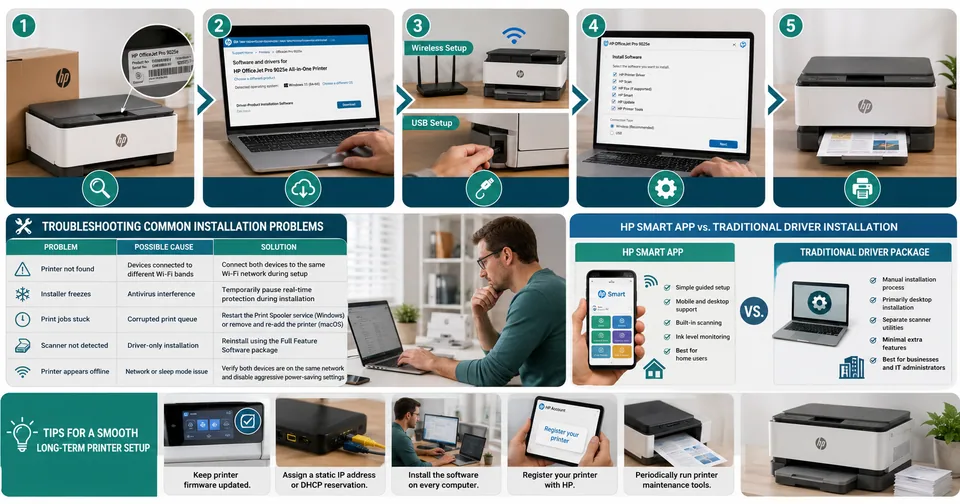
Step 1: Find Your Printer Model Number
Locate your exact printer model on:
The front panel
The rear label
The original product box
Having the correct model number ensures you download the proper driver package.
Step 2: Download the Official Installer
Visit the official HP Support website and search for your printer model.
Avoid downloading printer drivers from third-party websites. Official HP software is always free, secure, and updated regularly.
Save the installer in an easy-to-find location such as your Downloads folder.
Step 3: Power On and Connect the Printer
For wireless installation:
Place the printer near your Wi-Fi router.
Ensure your computer is connected to the same wireless network.
For USB installation:
Wait until the installer asks you to connect the USB cable.
Connecting the cable too early can create driver conflicts on some Windows systems.
Step 4: Run the Installation Software
Open the downloaded installer and follow the on-screen instructions.
During installation you'll typically choose:
Wireless or USB connection
Print driver
Scanner software
Fax software (if supported)
Whenever possible, choose Full Feature Software instead of the Driver Only option.
The Full Feature package includes:
Printing
Scanning
Maintenance utilities
Firmware management
HP Smart integration
Step 5: Print a Test Page
After installation finishes, print a test page.
This simple step confirms that:
Drivers installed correctly
The printer is connected properly
Print quality is normal
Communication between the printer and computer is working
Never skip this final verification.
Troubleshooting Common Installation Problems
Even a smooth installation can occasionally run into problems. Here are the most common issues and their solutions.
Problem | Possible Cause | Solution |
Printer not found | Devices connected to different Wi-Fi bands | Connect both devices to the same Wi-Fi network during setup |
Installer freezes | Antivirus interference | Temporarily pause real-time protection during installation |
Print jobs stuck | Corrupted print queue | Restart the Print Spooler service (Windows) or remove and re-add the printer (macOS) |
Scanner not detected | Driver-only installation | Reinstall using the Full Feature Software package |
Printer appears offline | Network or sleep mode issue | Verify both devices are on the same network and disable aggressive power-saving settings |
HP Smart App vs. Traditional Driver Installation
HP now offers two primary installation methods.
HP Smart App | Traditional Driver Package |
Simple guided setup | Manual installation process |
Mobile and desktop support | Primarily desktop installation |
Built-in scanning | Separate scanner utilities |
Ink level monitoring | Minimal extra features |
Best for home users | Best for businesses and IT administrators |
Both installation methods work well.
Choose the HP Smart App if you prefer simplicity and mobile access.
Choose the traditional driver package if you manage multiple computers or want greater control over installed components.
Tips for a Smooth Long-Term Printer Setup
To keep your printer running reliably after installation:
Keep printer firmware updated.
Assign a static IP address or DHCP reservation to prevent connection problems.
Install the software separately on every computer that uses the printer.
Register your printer with HP to simplify warranty support.
Periodically run printer maintenance tools to improve print quality.
For more technology setup tutorials, visit our Read Latest Blogs page.
You may also find these helpful:
How to Fix Printer Offline Errors
Best Free PDF Tools
How to Scan Documents on Windows
Printer Maintenance Guide
Computer Troubleshooting Tutorials
Frequently Asked Questions
Do I need to install HP printer software?
Basic printing may work using your operating system's built-in drivers. However, installing HP's official software unlocks scanning, wireless setup, maintenance tools, firmware updates, and ink monitoring.
Is HP printer installation software free?
Yes.
HP provides all official drivers and the HP Smart app as free downloads.
Can I install an HP printer without an internet connection?
Yes.
If you already have the installation package downloaded, you can install the printer using a USB cable without internet access. Wireless setup requires a network connection.
Why does my printer show Offline after installation?
This is usually caused by network configuration or printer sleep settings rather than installation problems.
Check that:
Both devices are on the same network.
The printer is powered on.
Sleep mode isn't disconnecting the network connection.
How do I install the same printer on another computer?
Download and run the installer on the second computer.
Choose the Wireless Installation option. The installer should automatically detect the printer already connected to your network.
Key Points
Installing HP printer installation software correctly the first time prevents many common printing and scanning problems later.
For the best results:
Download drivers only from the official HP website.
Choose the Full Feature Software package whenever available.
Complete a test print after installation.
Keep firmware updated regularly.
Install the software on every device that uses the printer.
For more step-by-step technology guides, explore our Read Latest Blogs, discover our Free Online Tools, or visit the Toolsimpli Homepage for additional resources and tutorials.